Image Comparison Slider Online Free
This free image comparison slider lays two pictures on top of each other and lets you drag a handle across them to reveal what changed. Use it for before and after photos, edits, retouches, screenshots or two versions of a design. Both images stay in your browser and are never uploaded. No sign-up needed.
How to compare two images with a slider
Choose a picture for Image 1 (Before) and another for Image 2 (After). You can tap each slot, or drop a file onto it. As soon as both are in, the comparison opens. Press on the picture and drag, or grab the round handle, to slide the After image over the Before image. With a keyboard, focus the handle and use the arrow keys, and hold Shift for bigger steps.
Put them the wrong way round? Press Swap to exchange the two images, or Reset to clear both and start again.
Slide or fade: which comparison mode to use
Slide splits the frame at the handle, so you see one picture on each side. Under it, choose Left / right for an up and down handle, or Top / bottom for a handle that runs across the picture. Slide is best for spotting a change in one area, such as a retouched spot or a moved element.
Fade keeps the pictures in place and blends the After image over the Before image instead. Drag the After image opacity slider under the picture from all Before at the left to all After at the right. Fade is best when the whole picture shifts slightly, such as a color grade or a lighting change.
Save the split as one image
Press Save Split Image to download the comparison as a single flattened file. It captures the exact split or blend you set, so move the slider to where you want it first. Choose PNG for lossless quality or JPG for a smaller file. The picture is saved at the full resolution of your Before image, up to 16 million pixels, which is plenty for sharing on social media or in a document.
Comparing images of different sizes
You never need to crop. The frame follows the shape of your Before image, and the After image is fitted inside it and centered. If the second picture is smaller or a different shape, it shows with empty space around it rather than being stretched or cut off. Swap the order if you would rather the other picture set the frame.
Good uses for a before and after slider
- Photo edits and retouching: show the original against the finished picture.
- Home projects and renovations: the room before and after the work.
- Design and UI revisions: two versions of the same screen or layout.
- Image compression: check whether a smaller file lost visible detail.
- Filters and color grades: see exactly what a preset changed.
Frequently asked questions
How do I compare two images online?
Choose your Before image in the first slot and your After image in the second. As soon as both are in, the comparison opens and you can drag the handle across them. Everything runs in your browser, so nothing is uploaded and you do not need an account.
How do I make a before and after image slider for free?
Add your two pictures and drag the round handle to reveal one over the other. Use Swap if they are the wrong way round. When the split looks right, press Save Split Image to download it as a single picture. It is free, with no watermark and no sign-up.
Can I compare two photos side by side online?
Yes. The slider shows both photos in the same frame, so you see the left part of one next to the right part of the other. Switch the direction to Top / bottom if you would rather split the pictures horizontally. Choose Fade to blend them instead.
How do I compare two images with a slider?
Press on the picture and drag, or grab the round handle and move it. On a keyboard, focus the handle and use the arrow keys, holding Shift for bigger steps. The Before image shows on one side of the handle and the After image on the other.
Are my images uploaded anywhere?
No. Both images are read and drawn inside your browser and never sent to a server. Nothing is saved after you close the page.
Can I save the before and after comparison as one image?
Yes. Press Save Split Image and you get one flattened file showing the exact split you set, or the exact blend if you are in Fade mode. Pick PNG or JPG first. It is saved at the full resolution of your Before image, up to 16 million pixels.
What if my two images are different sizes?
Nothing is cropped. The frame takes the shape of your Before image, and the After image is fitted inside it and centered, so a smaller or differently shaped picture leaves empty space around it instead of being stretched or cut.
Can I compare two photos on my phone or iPhone?
Yes. Tap each slot to choose a photo from your library, then drag the handle with your finger. The handle is large enough for a thumb, and you can still scroll the page by swiping along the direction the handle does not move. iPhone HEIC photos and camera RAW files work too.
Recommended
-
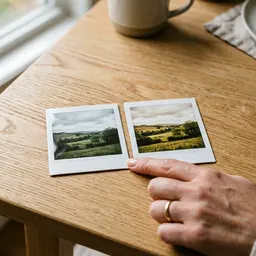 Fujifilm Instax Mini Film (20 shots)
Print your before and after as a pair of little keepsake photos.
-
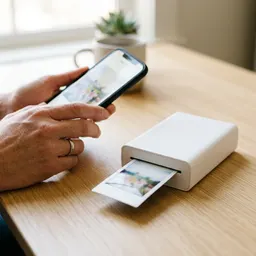 Fujifilm Instax Mini Link 3 Phone Printer
Print the finished comparison straight from your phone.
-
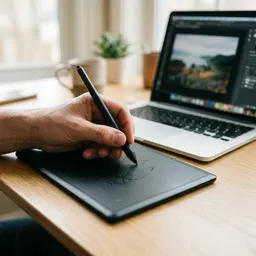 Wacom Intuos Small Pen Tablet
Retouch the edit with a pen, then compare again.
Helps keep the tools free. ✨
Images are for illustration only. As an Amazon Associate I earn from qualifying purchases.