Add a Grid to a Photo for Drawing
This free tool lets you add a grid to a photo for drawing reference, or build a blank grid from scratch — no upload, no account, and no software to install. Set the rows, columns, line color, and thickness above, then download a full-resolution PNG with the grid drawn exactly the way you configured it.
Two ways to build a grid — overlay a photo or start from a blank canvas
Drop or tap to upload a photo and the grid draws directly on top of it, sized to the image's own dimensions. Prefer to work from nothing? Skip the upload and enter a width and height instead — the tool builds a blank grid on a fully transparent background, which you can print, overlay in design software, or use as reusable graph paper. Either path lands in the same Grid Studio, where every control works identically.
Why artists use a grid overlay for drawing (the grid method)
The grid method is a classic drawing technique: divide a reference photo into equal squares, then redraw those same squares — usually scaled up — onto your canvas or paper, one at a time. Working one small square at a time makes it far easier to judge proportion, angle, and placement accurately than trying to eyeball an entire subject at once. It's a favorite for portrait studies, murals, and any drawing that needs to match a reference photo precisely.
How to add a grid to your photo online
- Tap or drag your photo onto the upload zone (JPG, PNG, WebP, GIF, HEIC, and RAW formats are all accepted)
- The image loads into the Grid Studio with a default 3×3 grid already drawn on top
- Adjust Rows, Columns, line color, and thickness until the grid reads clearly against your photo
- Tap Download Grid to save the finished image as a PNG
Nothing is uploaded to a server at any point — the image is decoded and the grid is drawn entirely inside your browser tab, using the HTML5 Canvas API.
Customizing your grid — rows, columns, line color and thickness
The Columns and Rows sliders go from 1 to 500 in each direction, and the cell size is calculated automatically to divide the canvas evenly — no manual math required. Line thickness ranges from 1 to 100px, and the line color picker accepts any hex color, so the grid can be made to stand out against a light or dark photo alike.
Advanced options — opacity, dashed lines, and edge margins
Open Advanced options for three more controls. Line opacity softens the grid so it reads as a light guide rather than a heavy overlay. The dashed lines toggle switches from solid strokes to a dashed pattern, useful when a solid grid obscures too much of the photo underneath. Edge margin insets the whole grid a set number of pixels from the canvas border and draws a matching border stroke at that inset — handy for keeping the grid off the very edge of a print.
Downloading your grid as a PNG
Download Grid exports at the canvas's full resolution — the same resolution as your uploaded photo, or the exact width and height you entered for a blank canvas — so the file is never softened or resized down for the preview. A grid built without a photo downloads with a transparent background; a grid overlaid on a photo downloads as a single flattened PNG with the lines baked in.
Frequently asked questions
How do I put a grid on a picture to draw?
Upload your photo above, then set the number of rows and columns with the sliders. The grid lines are calculated automatically to divide the image evenly, so you never have to work out cell spacing by hand. Adjust the line color and thickness so the grid is easy to see against your specific photo, then download the result as a PNG.
Is there an app to put a grid over a picture?
This tool does exactly that, entirely in your browser — no app install required. It works the same on a phone, tablet, or desktop: pick a photo, set your grid, and export a PNG with the grid drawn directly on top of the image.
How do you draw using the grid method?
The grid method breaks a reference photo into equal squares, then reproduces those same squares — usually enlarged — on your drawing surface. Because each square only holds a small piece of the image, it's far easier to judge proportions and placement correctly than trying to draw the whole subject freehand. Generate a grid here, print or reference it on screen, then draw your canvas with a matching grid of the same row and column count.
How do I add a grid to an image?
Drop or tap to upload your image, then use the Rows and Columns sliders to set the grid density. The line color, thickness, and (in Advanced options) opacity, dash style, and edge margin are all adjustable. Tap Download Grid to save a full-resolution PNG with the grid baked into the image.
Can I add a 3x3 grid to a photo?
Yes — 3x3 is the default when you upload a photo. Just leave the Rows and Columns sliders at 3 each, or set any other combination up to 500 rows and 500 columns for a much finer grid.
How do I make my own grid or graph paper online?
Skip the photo upload and use the width and height fields to set a blank canvas size instead — up to 8000x8000 pixels. As a square grid generator, the tool draws your grid on a transparent background, which you can download as a custom grid generator PNG and print, or drop into design software as a graph-paper-style overlay.
Recommended
-
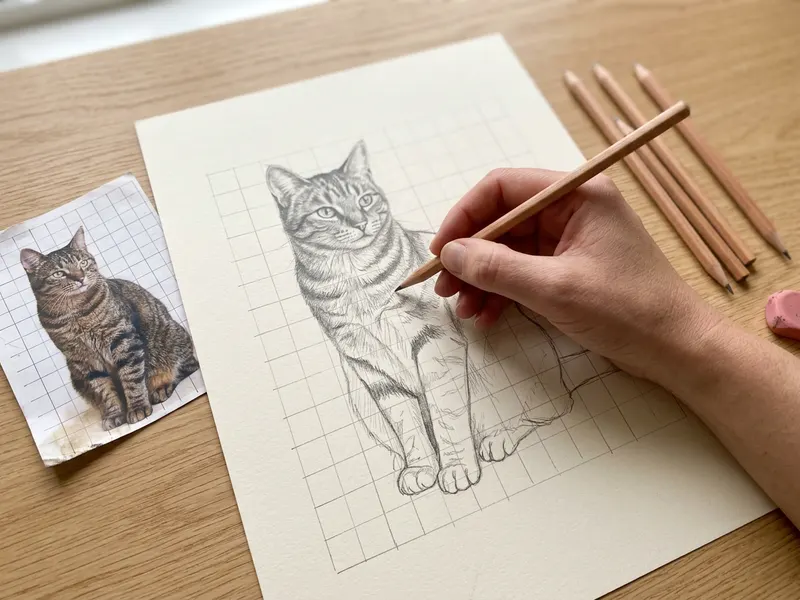 Staedtler Mars Lumograph Drawing Pencils (12)
From light grid lines to deep shadows: a full range of graphite grades.
-
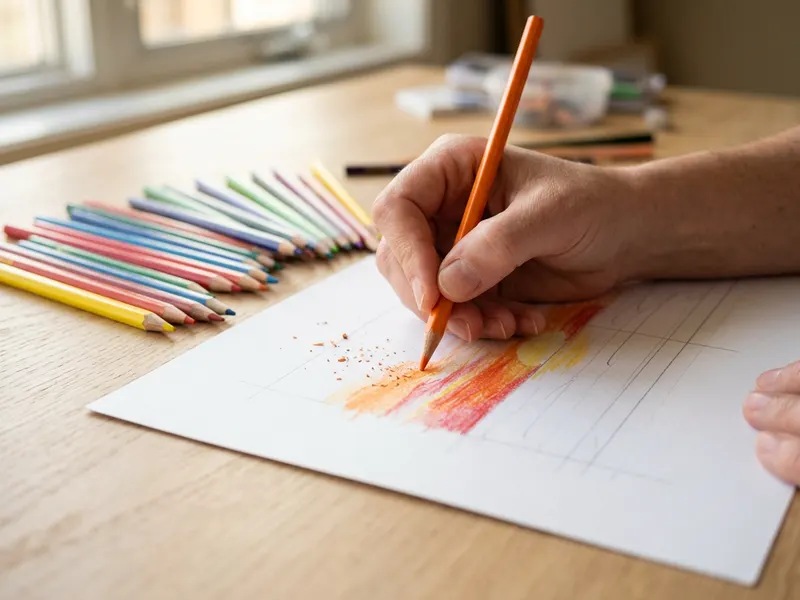 Prismacolor Premier Colored Pencils (48)
Soft, rich colour for filling in your gridded drawing square by square.
-
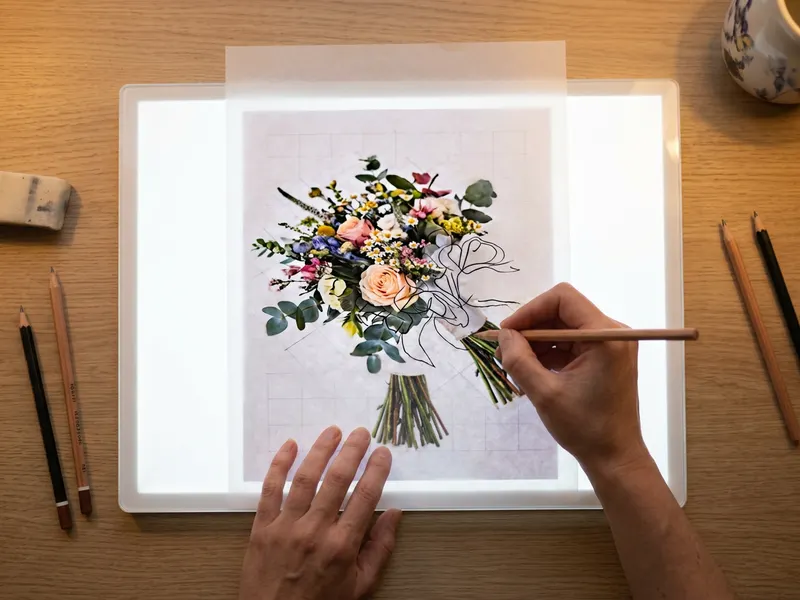 Huion A3 Light Box
Lay your gridded print underneath and see it glow through the paper.
Helps keep the tools free. ✨
Images are for illustration only. As an Amazon Associate I earn from qualifying purchases.